This option requires having a Premium Plus account (you only need it during the import — the imported lines stay on your map even after your paid account expires).
If you record your activities with Strava, you can import them directly into your map:
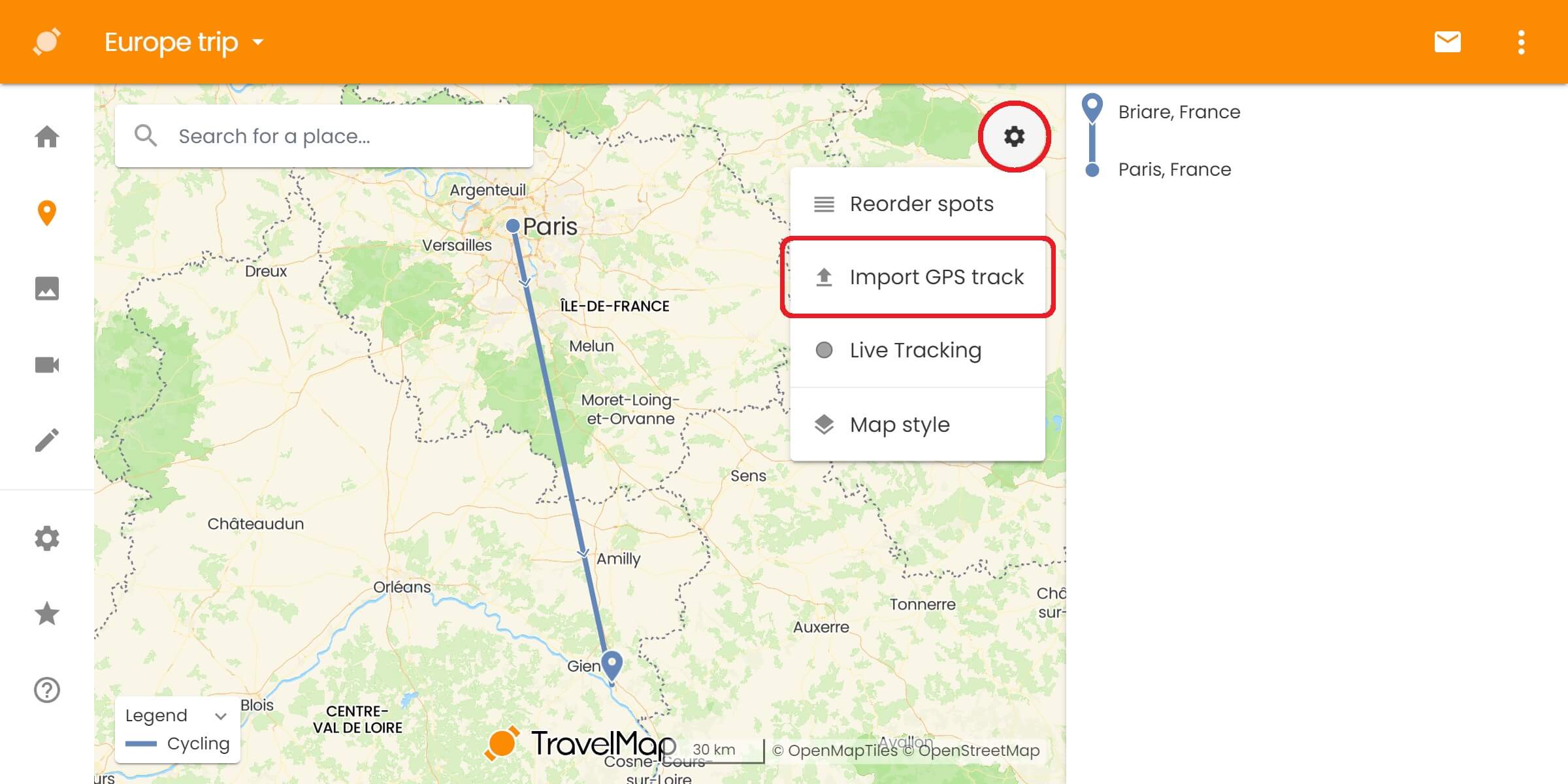
- Open your administration map
- Click on the settings icon (top right corner of the map)
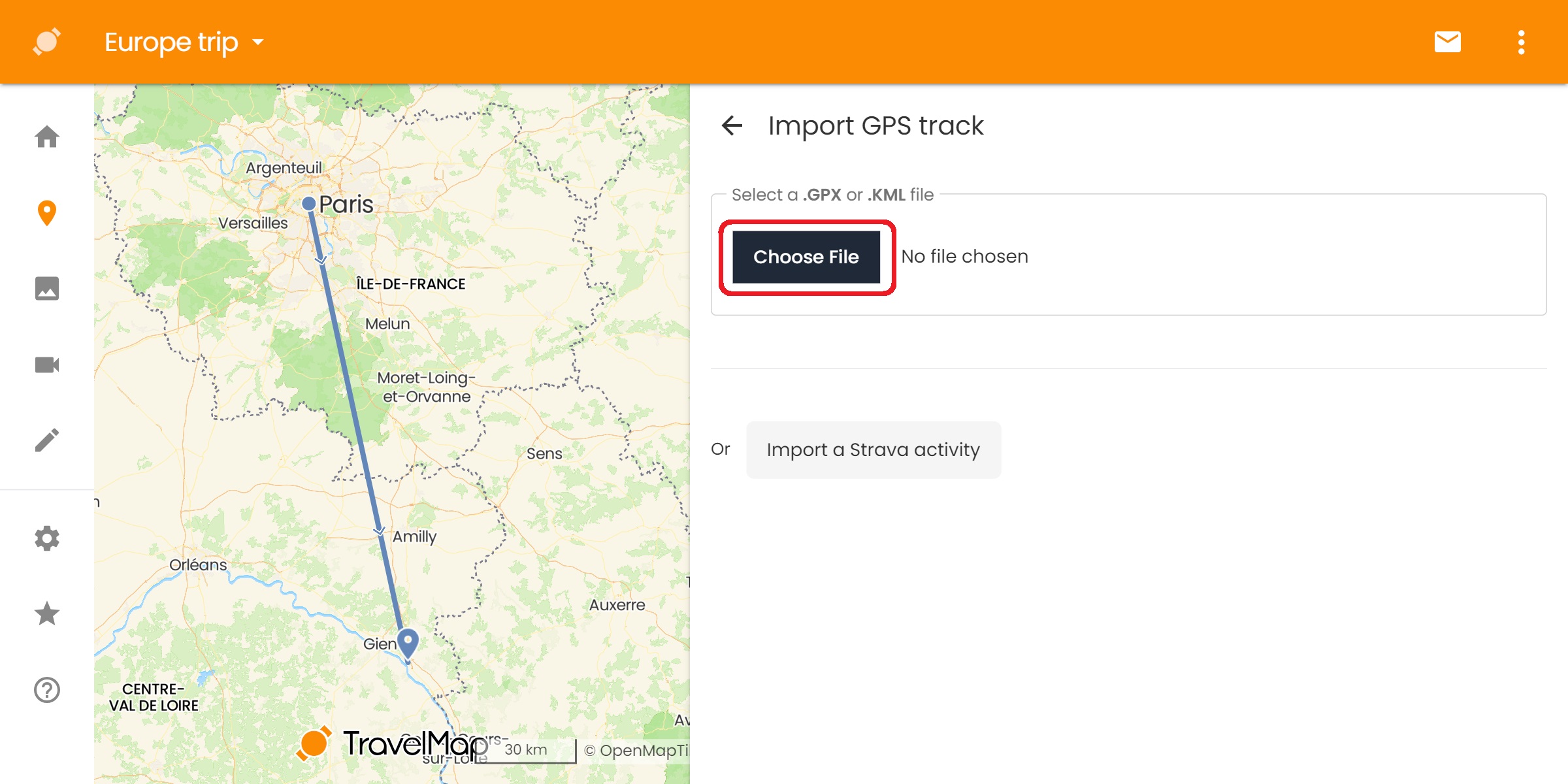
- Click on Import GPS track
- Then click on Import a Strava activity
The first time you use this feature, you'll need to authorize TravelMap to access your Strava data:
- Click on Connect your Strava account
- Check the box "View data about your activities" to import your Public and Followers-only activities
- Optionally: you can check the box "View data about your private activities" if you want to import activities you've kept private on Strava
- Click on Authorize

Once connected, you'll see the list of your most recent Strava activities:

- Click on the activity you'd like to import
- Use Load more... at the bottom to see older activities
- Then click on Save to confirm the import
Import multiple activities
To import several activities at once by filtering on a date range, see Import multiple Strava activities.
Automatically import future activities
See the Synchronize your Strava account guide to sync future activities automatically.