This option requires having a Premium Plus account (you only need it during the import — the imported lines stay on your map even after your paid account expires).
If you've recorded many activities on Strava — for example to retrace a past trip — you can import them all at once by filtering on a date range:
- Open your administration map
- Click on the settings icon (top right corner of the map)
- Click on Import GPS track, then Import a Strava activity
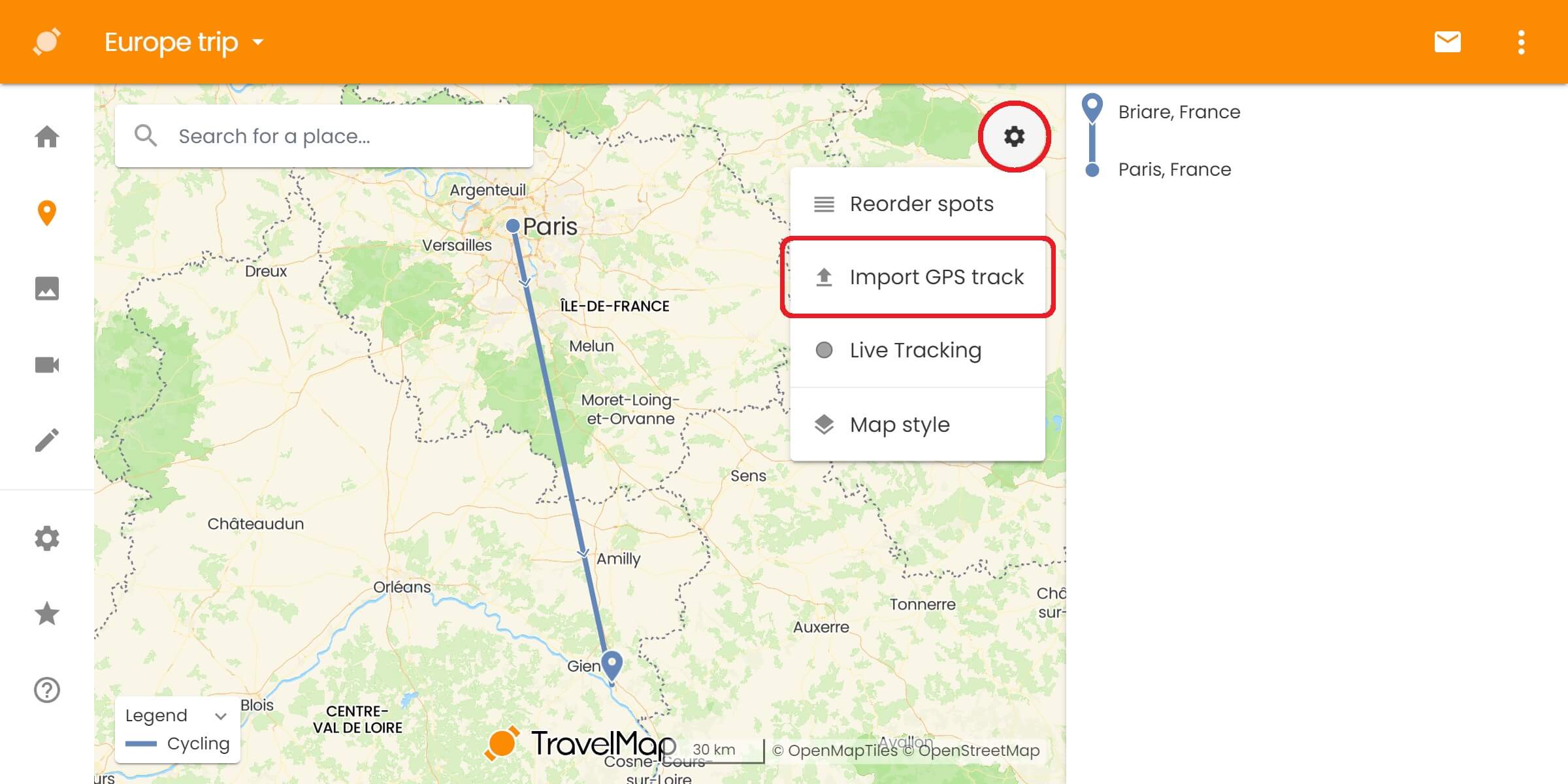
If it's your first time, you'll need to connect your Strava account — see Import a Strava activity for the authorization steps.
Filter by date
Click on Import several at the top of the page to reveal the date filter, then set a From and To date. The list updates automatically to show only the activities recorded within that range:
- Activities without GPS data are ignored automatically (indoor workouts, yoga, etc.)
- Click Import all to import every activity in the range
- The import can take up to a minute — please don't close the tab while it runs
Importing more than 30 activities
You can import up to 30 activities at a time. If you need to import more — for example several months of activities at once — please reach out via the contact form and we'll take care of it for you.
Automatically import future activities
To sync new activities as you record them, see the Synchronize your Strava account guide.